
.NET Authentication with EF Core, Identity and DB2 for i (IBM i)
Introduction
ASP.NET Core Identity is .NET's built-in authentication system. It handles registration, sign-in, password hashing, roles and route protection, all without writing any of it by hand. Login pages, registration, account management, password reset... everything is generated automatically and ready to use. Identity's inner workings are not covered here. See the Microsoft documentation for that.
By default, Identity requires an EF Core compatible connector to store its data, such as SQL Server, PostgreSQL, SQLite...
With NTi's Entity Framework Core extension, you can use DB2 for i as the storage backend.
Microsoft Identity relies on EF Core to persist its data, and that entry point is exactly what NTi taps into to redirect storage to your IBM i.
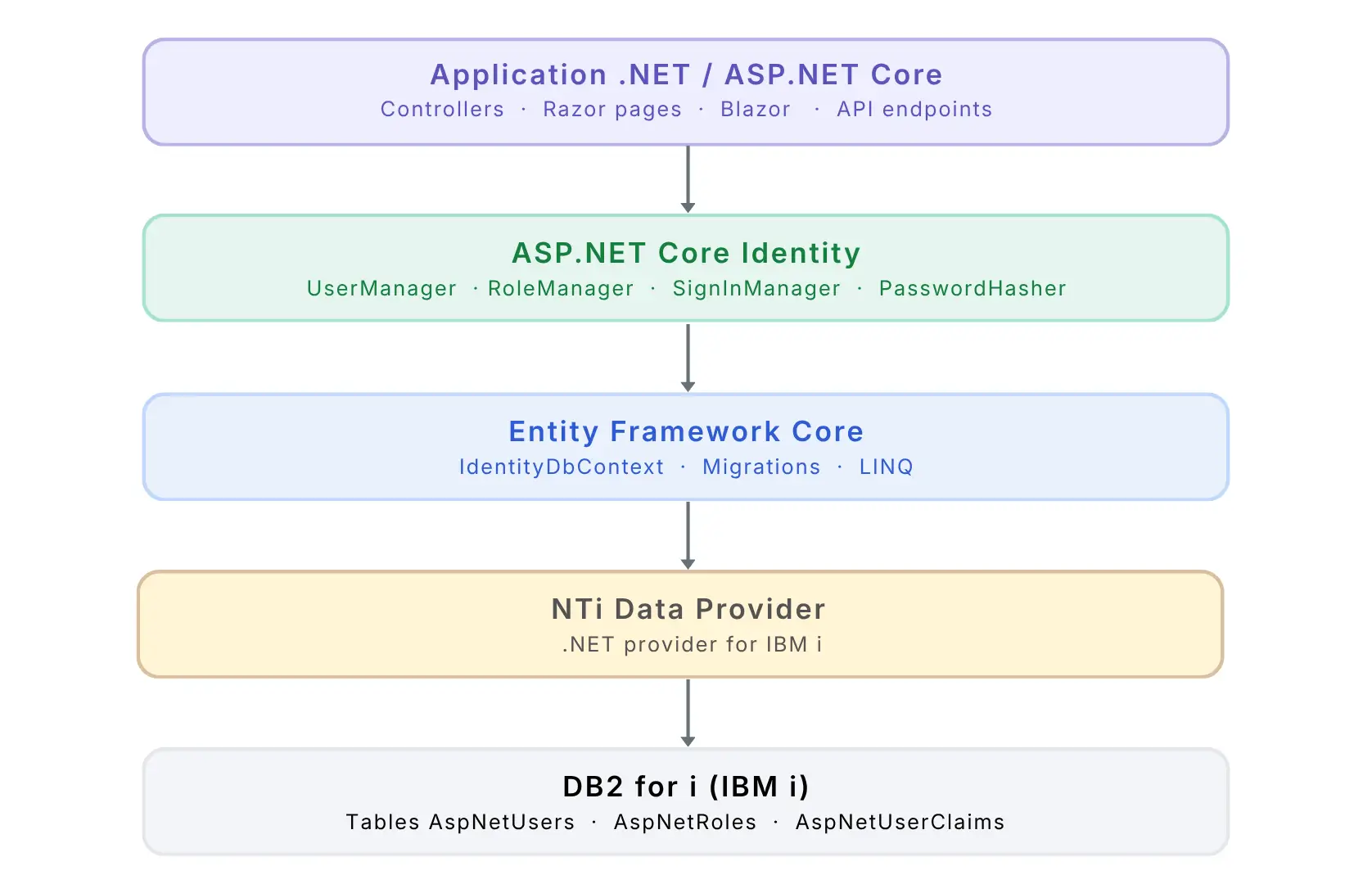
This tutorial shows how to set up Identity in a Blazor Server application, with the user tables created automatically in a DB2 for i library through EF Core migrations.
Prerequisites
- .NET SDK 8, 9 or 10
- Visual Studio 2022 or equivalent (for scaffolding)
- IBM i version 7.2 or later
Microsoft.AspNetCore.Identity.EntityFrameworkCoreandMicrosoft.EntityFrameworkCore.Designpackages matching the targeted EF Core major version: 8.0.x, 9.0.x or 10.0.x
The commands in this tutorial target .NET 8. For .NET 9 or .NET 10, replace the framework version and the package versions given in step 2.
Step 1 - Create the project
Create a new empty Blazor Web App project in .NET 8:
dotnet new blazor -n NtiIdentityDemo -f net8.0 --empty
cd NtiIdentityDemo
💡 If you use Visual Studio, create a Blazor Web App project, pick .NET 8 as the framework and Server as the render mode. For .NET 9 or .NET 10, replace
net8.0withnet9.0ornet10.0.
Step 2 - Install the NuGet packages
Four packages are needed, each with a specific role:
dotnet add package Aumerial.Data.Nti
dotnet add package Aumerial.EntityFrameworkCore --version 8.5.0
dotnet add package Microsoft.AspNetCore.Identity.EntityFrameworkCore --version 8.0.*
dotnet add package Microsoft.EntityFrameworkCore.Design --version 8.0.*| Package | Role |
|---|---|
Aumerial.Data.Nti |
TCP/IP connection to the IBM i |
Aumerial.EntityFrameworkCore |
EF Core extension for DB2 for i |
Microsoft.AspNetCore.Identity.EntityFrameworkCore |
Bridges Identity and EF Core |
Microsoft.EntityFrameworkCore.Design |
Migration tooling (dotnet ef) |
💡 The
Aumerial.EntityFrameworkCoreversion follows EF Core: 8.5.0 for .NET 8, 9.5.0 for .NET 9, 10.5.0 for .NET 10 (major version = EF Core version, minor version = NTi generation). The Microsoft packages must be pinned to the same major version: 8.0.x, 9.0.x or 10.0.x.
Step 3 - Create the Data folder
Create a Data/ folder at the root of the project. It will hold the two classes Identity needs to work with EF Core.
Data/ApplicationUser.cs
ApplicationUser is the class that represents a user in your application. It inherits from IdentityUser, which already contains every field you need: identifier, username, email, password hash, and so on.
using Microsoft.AspNetCore.Identity;
namespace NtiIdentityDemo.Data
{
    public class ApplicationUser : IdentityUser
    {
    }
}
For now it is empty, which is expected. If you want to store extra information about your users (first name, last name, department...), this is where you add it:
public class ApplicationUser : IdentityUser
{
    public string? FirstName { get; set; }
    public string? LastName { get; set; }
}
💡 Every property added here becomes a column in the
ASPNETUSERStable on DB2 for i. A new migration is required to apply the change to the database.
Data/AppDbContext.cs
DbContext is the class that bridges your C# code and the database. It knows which tables exist, how to convert your C# objects into data DB2 for i can work with, and how to run queries through NTi.
Instead of inheriting from the plain DbContext, you inherit from IdentityDbContext<ApplicationUser>. This specialized context automatically carries every DbSet Identity needs, so there is no need to declare them by hand:
using Microsoft.EntityFrameworkCore;
using Microsoft.AspNetCore.Identity.EntityFrameworkCore;
namespace NtiIdentityDemo.Data
{
    public class AppDbContext : IdentityDbContext
    {
        public AppDbContext(DbContextOptions options) : base(options)
        {
        }
    }
} | DbSet | Table created on DB2 for i |
|---|---|
DbSet<ApplicationUser> |
ASPNETUSERS |
DbSet<IdentityRole> |
ASPNETROLES |
DbSet<IdentityUserRole> |
ASPNETUSERROLES |
DbSet<IdentityUserClaim> |
ASPNETUSERCLAIMS |
DbSet<IdentityUserLogin> |
ASPNETUSERLOGINS |
DbSet<IdentityUserToken> |
ASPNETUSERTOKENS |
DbSet<IdentityRoleClaim> |
ASPNETROLECLAIMS |
Step 4 - Configure the connection string
In appsettings.json, add your NTi connection string:
{
  "ConnectionStrings": {
    "DefaultConnection": "server=SERVER;user=USER;password=PWD;schema=IDENTITYDB;pooling=true"
  }
}
The schema parameter names the DB2 for i library where the Identity tables will be created. If the library does not exist, EF Core creates it automatically during the migration.
For the full list of available parameters, see the NTiConnection class.
💡 Connection pooling is off by default.
pooling=trueis recommended for any web application. IBM i library names are limited to 10 characters. Keep that constraint in mind for theschemaparameter.
Step 5 - Scaffold the Identity components
The Identity Razor components (login, registration, account management pages...) can be generated automatically through Visual Studio scaffolding.
- Right-click the Components folder in your project
- Select Add > New Scaffolded Item > Blazor Identity
- Set the options:
- DbContext class: select
AppDbContext - User class: select
ApplicationUser
- DbContext class: select
- Click Add
Visual Studio generates the Identity Razor components in the Components/Account/Pages/ folder:
Login.razor- sign-in formRegister.razor- registration formLogout.razor- sign-outManage/- profile, password, 2FA management...
It also generates several utility files under Components/Account/ that the Identity components need, along with an automatically updated Program.cs.
💡 The project must build without errors after scaffolding. If
ApplicationUseris not recognized in some generated files, check that theNtiIdentityDemo.Datanamespace is referenced in the relevantusingdirectives.
Step 6 - Configure Program.cs
Scaffolding generated a Program.cs configured for SQLite. Just replace UseSqlite with UseNTi to connect to the DB2 for i database through NTi Data Provider.
Replace this line:
builder.Services.AddDbContext(options =>
    options.UseSqlite(connectionString));
With:
builder.Services.AddDbContext(options =>
    options.UseNTi(connectionString));
Then add using Aumerial.EntityFrameworkCore; at the top of the file.
The final Program.cs should look like this:
using Aumerial.EntityFrameworkCore;
using Microsoft.AspNetCore.Components.Authorization;
using Microsoft.AspNetCore.Identity;
using NtiIdentityDemo.Components;
using NtiIdentityDemo.Components.Account;
using NtiIdentityDemo.Data;
var builder = WebApplication.CreateBuilder(args);
var conn = builder.Configuration.GetConnectionString("DefaultConnection");
// Register the DbContext with NTi
builder.Services.AddDbContext(options =>
    options.UseNTi(conn));
builder.Services.AddRazorComponents()
    .AddInteractiveServerComponents();
builder.Services.AddCascadingAuthenticationState();
builder.Services.AddScoped();
builder.Services.AddScoped();
builder.Services.AddScoped();
builder.Services.AddAuthentication(options =>
    {
        options.DefaultScheme = IdentityConstants.ApplicationScheme;
        options.DefaultSignInScheme = IdentityConstants.ExternalScheme;
    })
    .AddIdentityCookies();
builder.Services.AddIdentityCore(options => options.SignIn.RequireConfirmedAccount = true)
    .AddEntityFrameworkStores()
    .AddSignInManager()
    .AddDefaultTokenProviders();
builder.Services.AddSingleton, IdentityNoOpEmailSender>();
var app = builder.Build();
if (!app.Environment.IsDevelopment())
{
    app.UseExceptionHandler("/Error", createScopeForErrors: true);
    app.UseHsts();
}
app.UseHttpsRedirection();
app.UseStaticFiles();
app.UseAntiforgery();
app.MapRazorComponents()
    .AddInteractiveServerRenderMode();
app.MapAdditionalIdentityEndpoints();
app.Run();
AddDbContext with UseNTi is the only place where NTi comes into play.
Everything else in Program.cs is standard .NET generated by the scaffolding. UseNTi simply replaces UseSqlite to redirect storage to DB2 for i.
Step 7 - Create and apply the migration
This is where the Identity tables get created in the DB2 for i database.
Generate the migration
EF Core inspects AppDbContext and generates the required SQL statements:
dotnet ef migrations add InitialIdentityA Migrations/ folder appears in your project, containing the migration file that describes the 7 Identity tables to create.
Apply the migration on the IBM i
NTi connects to your IBM i and runs the statements:
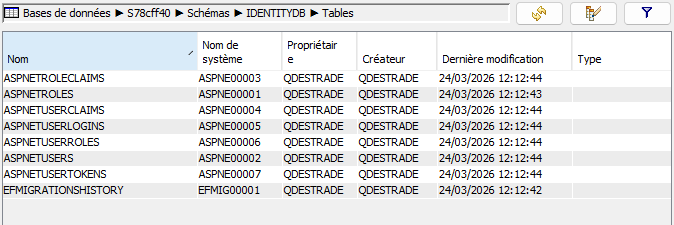
dotnet ef database updateThe 7 Identity tables appear in the library, along with a __EFMIGRATIONSHISTORY table (the standard __EFMigrationsHistory name, emitted in uppercase by NTi) that EF Core uses to track which migrations have already been applied.
You can check the result in ACS (IBM Access Client Solutions) by opening the IDENTITYDB library.
💡 Migrations are incremental. The first migration creates all the tables. Later ones add only what changed. If you add properties to
ApplicationUser, a new migration creates the matching columns inASPNETUSERSwithout touching existing data.
Step 8 - Test Identity authentication
To confirm everything works, add @attribute [Authorize] to Components/Pages/Home.razor to protect the home page:
@page "/"
@attribute [Authorize]
<PageTitle>Home</PageTitle>
<h1>Welcome</h1>
<p>You are signed in!</p>
💡
[Authorize]tells Blazor that this page is only accessible to signed-in users. Any unauthenticated user is automatically redirected to the login page.
If [Authorize] is not recognized, add this using directive to Components/_Imports.razor:
@using Microsoft.AspNetCore.AuthorizationLaunch the application and follow these steps to validate the authentication flow:
- You are automatically redirected to /Account/Login.
- Click "Register as a new user" and create an account.
- After registration, click the confirmation link in the URL to validate the account.
- Go back to /Account/Login and sign in. You are redirected to the home page, proof that authentication worked.
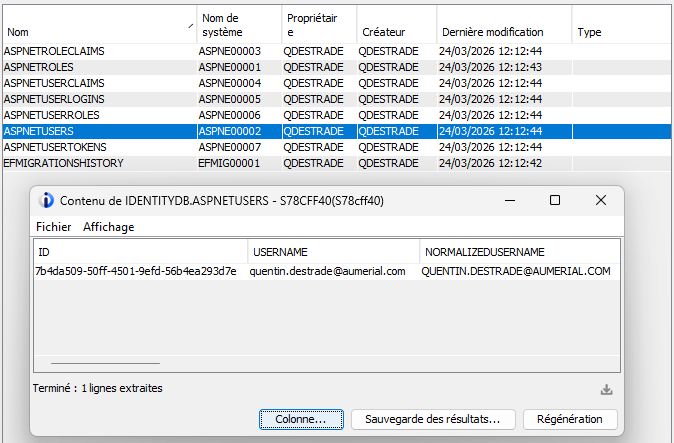
Open ACS and check the ASPNETUSERS table in the IDENTITYDB library. The row matching your account is there.
💡 Every Identity component generated by scaffolding is fully customizable. You can edit
Login.razor,Register.razor..., adjust password rules, disable email confirmation, add fields to the registration form... The components live underComponents/Account/Pages/and are plain Razor.
What's next?
- Blazor Server CRUD with EF Core : go further with EF Core on DB2 for i
- Entity Framework Core : configuration, data types and migrations
- Connection : connection string, pooling, MFA