Build a Blazor Server CRUD Application with EF Core 8 and DB2 for i (IBM i)
Introduction
This tutorial shows how to create a Blazor Server application connected to a DB2 for i database via the NTi Entity Framework Core extension, compatible with .NET 8, .NET 9 and .NET 10.
The goal is to implement a full CRUD to manage products, categories and orders from a modern .NET web application.
This approach lets you use EF Core with IBM i to simplify data access and speed up business application development.
The project presented in this tutorial uses .NET 8.
Step 1 - Create and configure the project
Create the project from the command line:
dotnet new blazorserver -n myApp --framework net8.0
cd myApp
Add the required packages:
dotnet add package Aumerial.Data.NTi
dotnet add package Aumerial.EntityFrameworkCore
dotnet add package Microsoft.EntityFrameworkCore.Design
Add the connection string to appsettings.json, specifying the default schema in which all created entities will be placed:
{
    "ConnectionStrings": {
        "DefaultConnection": "server=Server;user=User;password=Pwd;database=Db"
    }
}
Step 2 - Define the entities
Create a Models folder and add the following classes.
Category.cs
A category can contain multiple products:
public class Category
{
    public int Id { get; set; }
    public string Name { get; set; }
    public ICollection<Product> Products { get; set; }
}
Product.cs
A product belongs to a category and can be linked to multiple orders:
public class Product
{
    public int Id { get; set; }
    public string Name { get; set; }
    public string Description { get; set; }
    public decimal Price { get; set; }
    public int StockQuantity { get; set; }
    public decimal Weight { get; set; }
    public bool IsAvailable { get; set; }
    public int CategoryId { get; set; }
    public Category Category { get; set; }
    public ICollection<Order> Orders { get; set; } = new List<Order>();
}
Order.cs
An order can contain multiple products:
public class Order
{
    public int Id { get; set; }
    public DateTime OrderDate { get; set; }
    public DateTime? DeliveryDate { get; set; }
    public decimal TotalAmount { get; set; }
    public ICollection<Product> Products { get; set; }
}
Step 3 - Configure the DbContext
Add an AppDbContext class inheriting from DbContext to manage the entities and their relationships:
using Microsoft.EntityFrameworkCore;

public class AppDbContext : DbContext
{
    public AppDbContext(DbContextOptions<AppDbContext> options) : base(options) { }

    public DbSet<Product> Products { get; set; }
    public DbSet<Category> Categories { get; set; }
    public DbSet<Order> Orders { get; set; }

     protected override void OnModelCreating(ModelBuilder modelBuilder)
    {

    }
}
Step 4 - Configure Program.cs
Register the DbContext in Program.cs as a service via dependency injection for your Blazor components:
var connectionString = builder.Configuration.GetConnectionString("DefaultConnection");
builder.Services.AddDbContext<AppDbContext>(options =>
    options.UseNTi(connectionString));
💡
AddDbContextis recommended for most Blazor Server applications. TheDbContextis instantiated with a Scoped lifetime, recreated on each user request. UseAddDbContextFactoryfor background tasks or multi-threaded processing.
Step 5 - Create and manage migrations
Generate an initial migration to create the tables in the database. This command creates a file in the Migrations folder containing the SQL instructions to create your tables:
dotnet ef migrations add InitialCreateThen apply the migration:
dotnet ef database update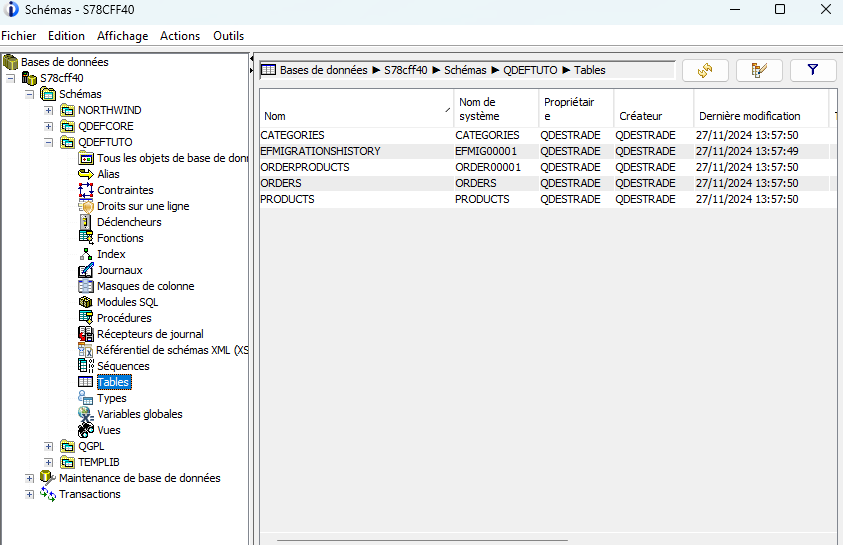
To add or modify a table, create or update the relevant entity, add it to AppDbContext if needed, then generate a new migration:
dotnet ef migrations add MyNewMigration
dotnet ef database update
To remove the last migration before it is applied:
dotnet ef migrations removeTo roll back to a previous database version:
dotnet ef database update MigrationNameReplace
MigrationNamewith the name of the migration you want to apply or revert to.
Step 6 - Add initial seed data
Add seed data in Program.cs after the service registration:
using (var scope = app.Services.CreateScope())
{
    var context = scope.ServiceProvider.GetRequiredService();

    var categories = new List
    {
        new Category { Name = "Electronics" },
        new Category { Name = "Books" },
        new Category { Name = "Home Appliances" },
        new Category { Name = "Fashion" },
        new Category { Name = "Toys" }
    };
    context.Categories.AddRange(categories);

    var products = new List
    {
        new Product { Name = "Smartphone", Price = 500, StockQuantity = 10, Category = categories[0], IsAvailable = true },
        new Product { Name = "Laptop", Price = 1200, StockQuantity = 5, Category = categories[0], IsAvailable = true },
        new Product { Name = "Washing Machine", Price = 300, StockQuantity = 8, Category = categories[2], IsAvailable = true },
        new Product { Name = "T-Shirt", Price = 20, StockQuantity = 50, Category = categories[3], IsAvailable = true },
        new Product { Name = "Children's Book", Price = 15, StockQuantity = 100, Category = categories[1], IsAvailable = true },
        new Product { Name = "Toy Car", Price = 30, StockQuantity = 20, Category = categories[4], IsAvailable = true },
        new Product { Name = "Microwave Oven", Price = 250, StockQuantity = 6, Category = categories[2], IsAvailable = true },
        new Product { Name = "Jeans", Price = 40, StockQuantity = 30, Category = categories[3], IsAvailable = true }
    };
    context.Products.AddRange(products);

    var orders = new List
    {
        new Order
        {
            OrderDate = DateTime.Now.AddDays(-10),
            DeliveryDate = DateTime.Now.AddDays(-7),
            TotalAmount = 750,
            Products = new List { products[0], products[1], products[3] }
        },
        new Order
        {
            OrderDate = DateTime.Now.AddDays(-5),
            DeliveryDate = DateTime.Now.AddDays(-3),
            TotalAmount = 600,
            Products = new List { products[4], products[5], products[6] }
        },
        new Order
        {
            OrderDate = DateTime.Now.AddDays(-2),
            DeliveryDate = null,
            TotalAmount = 290,
            Products = new List { products[2], products[7] }
        }
    };
    context.Orders.AddRange(orders);

    context.SaveChanges();
}
Step 7 - Generate the CRUD pages
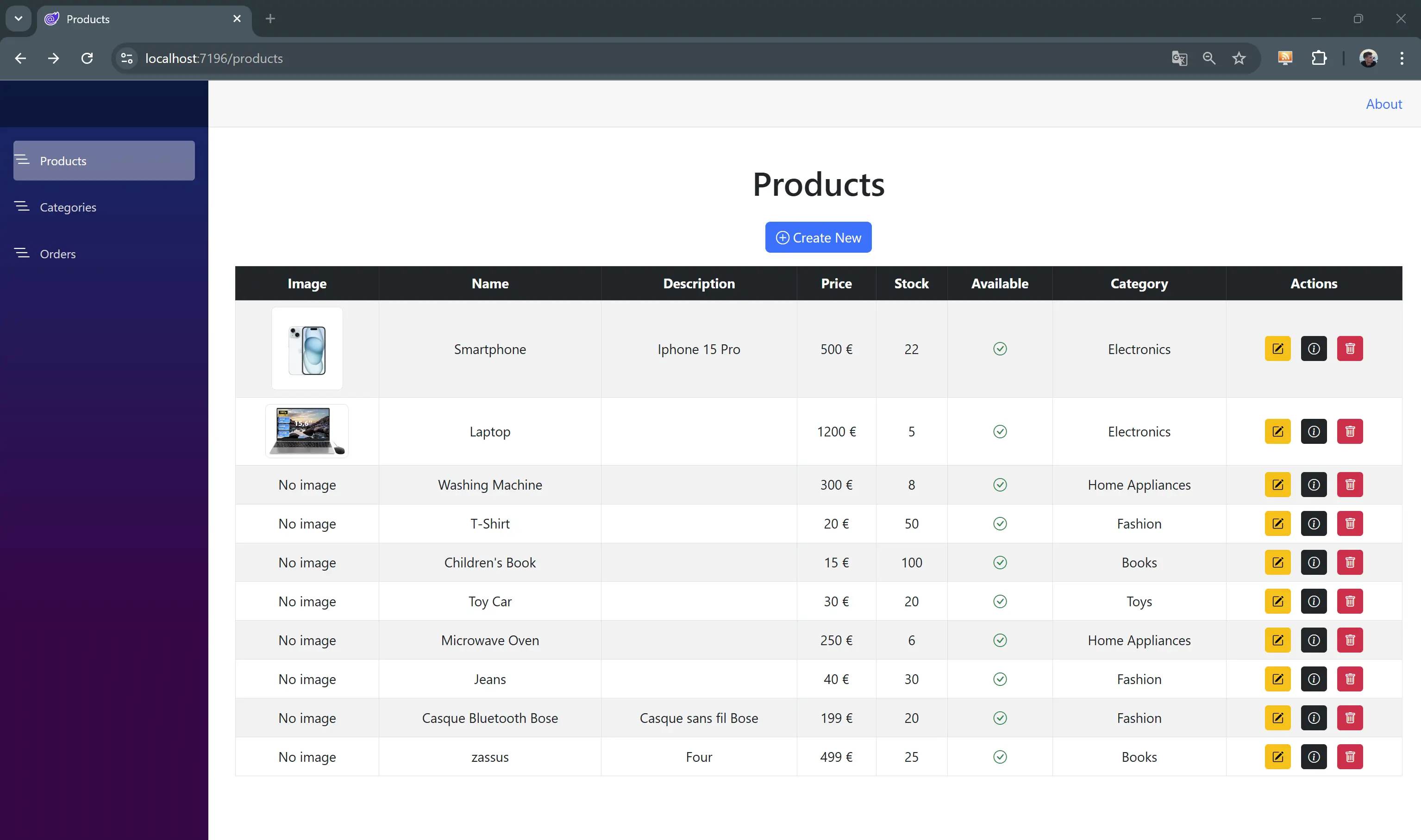
Visual Studio can automatically generate Razor CRUD components for each of your entities in just a few clicks.
- Right-click on the Pages folder in your Blazor Server project
- Select Add > New Scaffolded Item > Razor Components using Entity Framework (CRUD)
- Configure the options:
- Model Class: select the desired entity (e.g.
Product) - DbContext Class: select
AppDbContext
- Model Class: select the desired entity (e.g.
Visual Studio automatically generates a set of Razor CRUD components in a dedicated
folder (e.g. ProductPages):
Index.razor- records listCreate.razor- add formEdit.razor- edit formDetails.razor- record detail viewDelete.razor- delete confirmation
Repeat the operation for each entity: Category, Order.
Step 8 - Add an image field (BLOB)
Add an Image field of type byte[] to the Product entity:
public class Product
{
    public int Id { get; set; }
    public string Name { get; set; }
    public string Description { get; set; }
    public decimal Price { get; set; }
    public int StockQuantity { get; set; }
    public decimal Weight { get; set; }
    public bool IsAvailable { get; set; }
    public int CategoryId { get; set; }
    public Category Category { get; set; }

    [Column(TypeName = "BLOB(1M)"), DataType(DataType.Upload)]
    public byte[] Image { get; set; }
}
Generate and apply the migration:
dotnet ef migrations add AddProductImage
dotnet ef database update
Then update the EditProduct and CreateProduct components to add the upload field:
<div class="mb-3">
    <label for="image" class="form-label">Image:</label>
    <InputFile id="image" OnChange="UploadFile" class="form-control" />
    @if (Product?.Image != null && Product.Image.Length > 0)
    {
        <p>Current image:</p>
        <img src="data:image/jpeg;base64,@Convert.ToBase64String(Product.Image)"
             style="max-width: 200px; max-height: 200px;" />
    }
    else
    {
        <p>No image available</p>
    }
</div>
And the method to handle the upload:
    private async Task UploadFile(InputFileChangeEventArgs e)
    {
        var file = e.File;

        if (file != null)
        {
            using var memoryStream = new MemoryStream();
            await file.OpenReadStream().CopyToAsync(memoryStream);
            Product.Image = memoryStream.ToArray();
        }
    }
What's next?
- Entity Framework Core - configuration, data types and migrations
- Connection - connection string, pooling, MFA
- Quick Start Guide - first connection and first IBM i calls